Encountering the Authentication Failed Error Code: 403 on Roblox while trying to join a game server can be frustrating. You can usually fix this issue by following the steps below.
Step 1: Close Roblox Player and Clear Local App Data
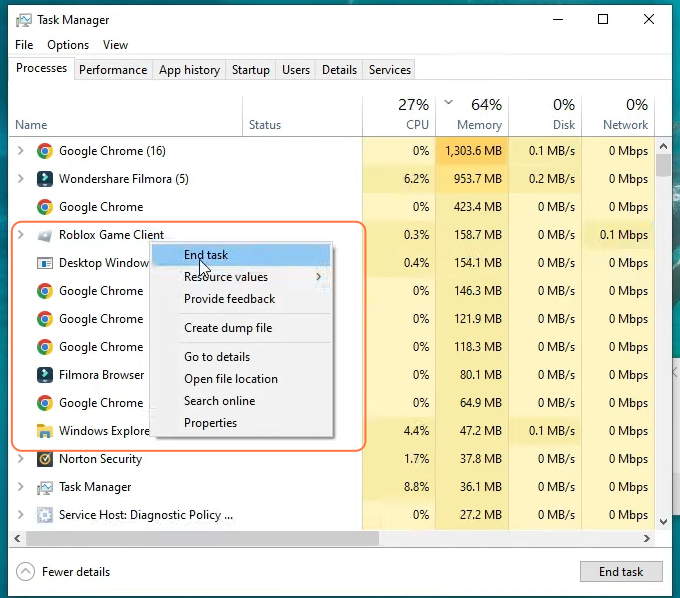
- Force-close the Roblox Player using Task Manager.
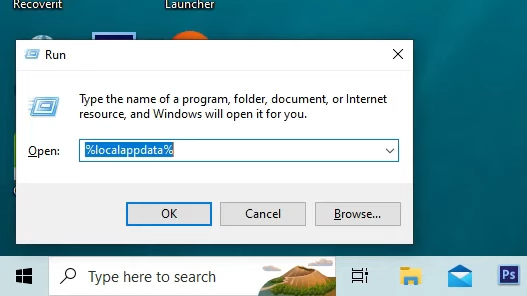
- Press Windows + R, type %localappdata%, and press Enter.
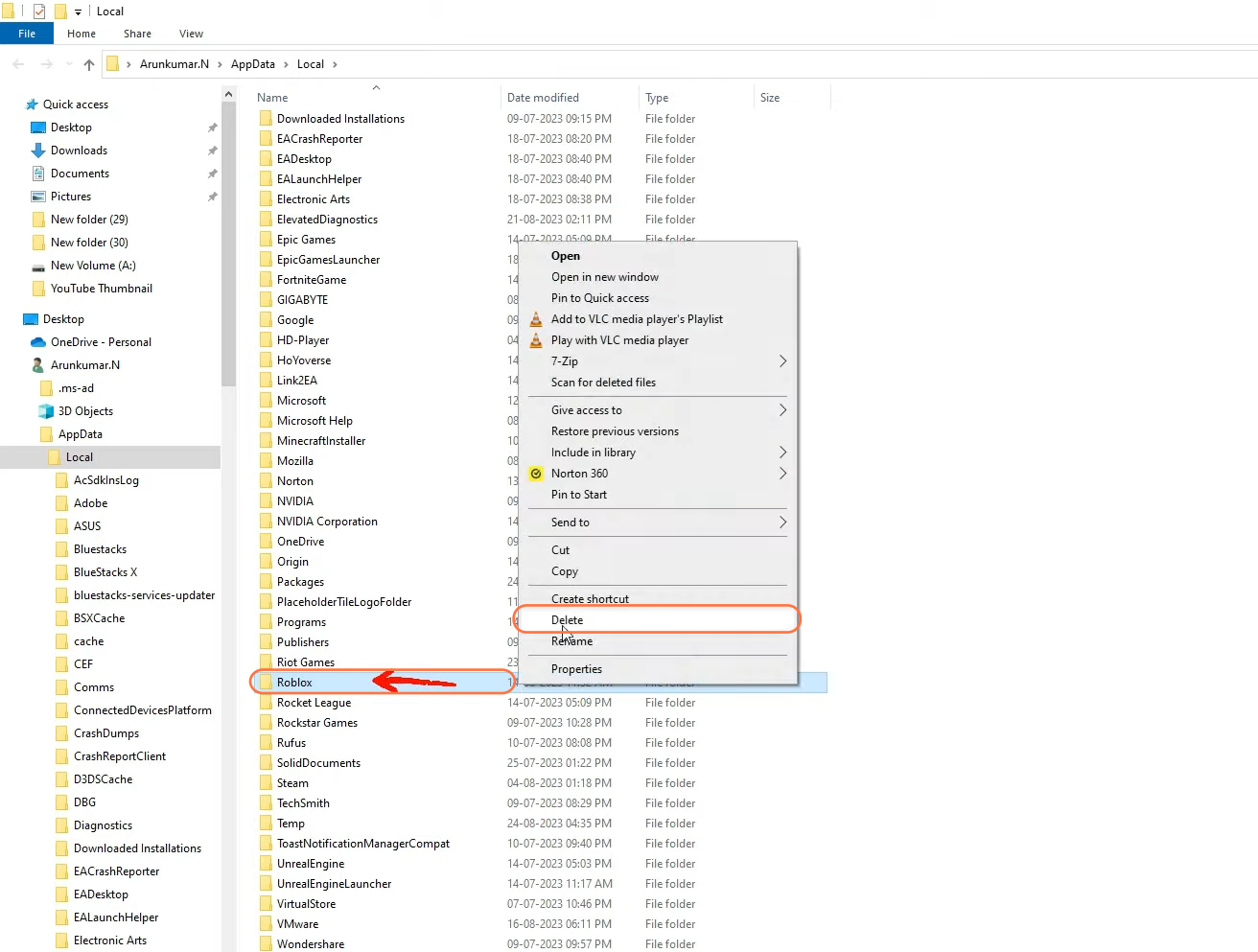
- Locate and delete the Roblox folder.
Note: Deleting this folder will require you to reinstall Roblox.
Step 2: Change DNS Address Settings
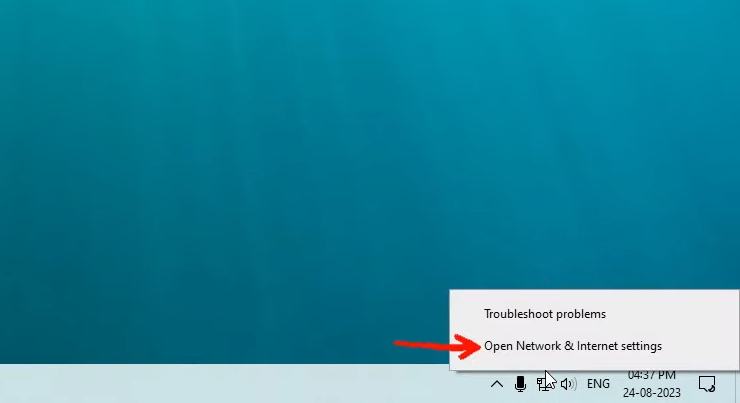
- Right-click the network icon and select Open Network & Internet Settings.
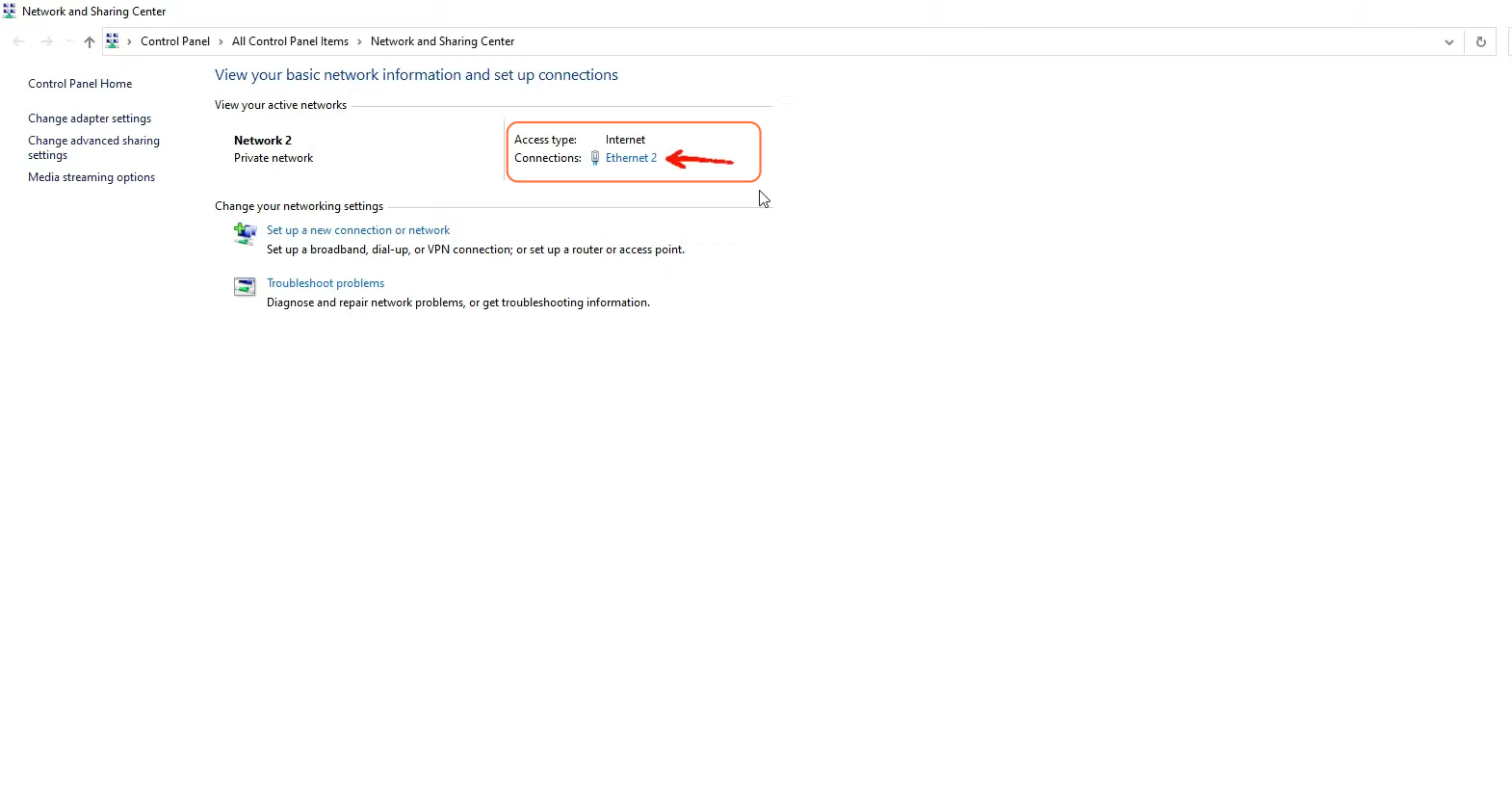
- Open Network and Sharing Center and click your Ethernet adapter.
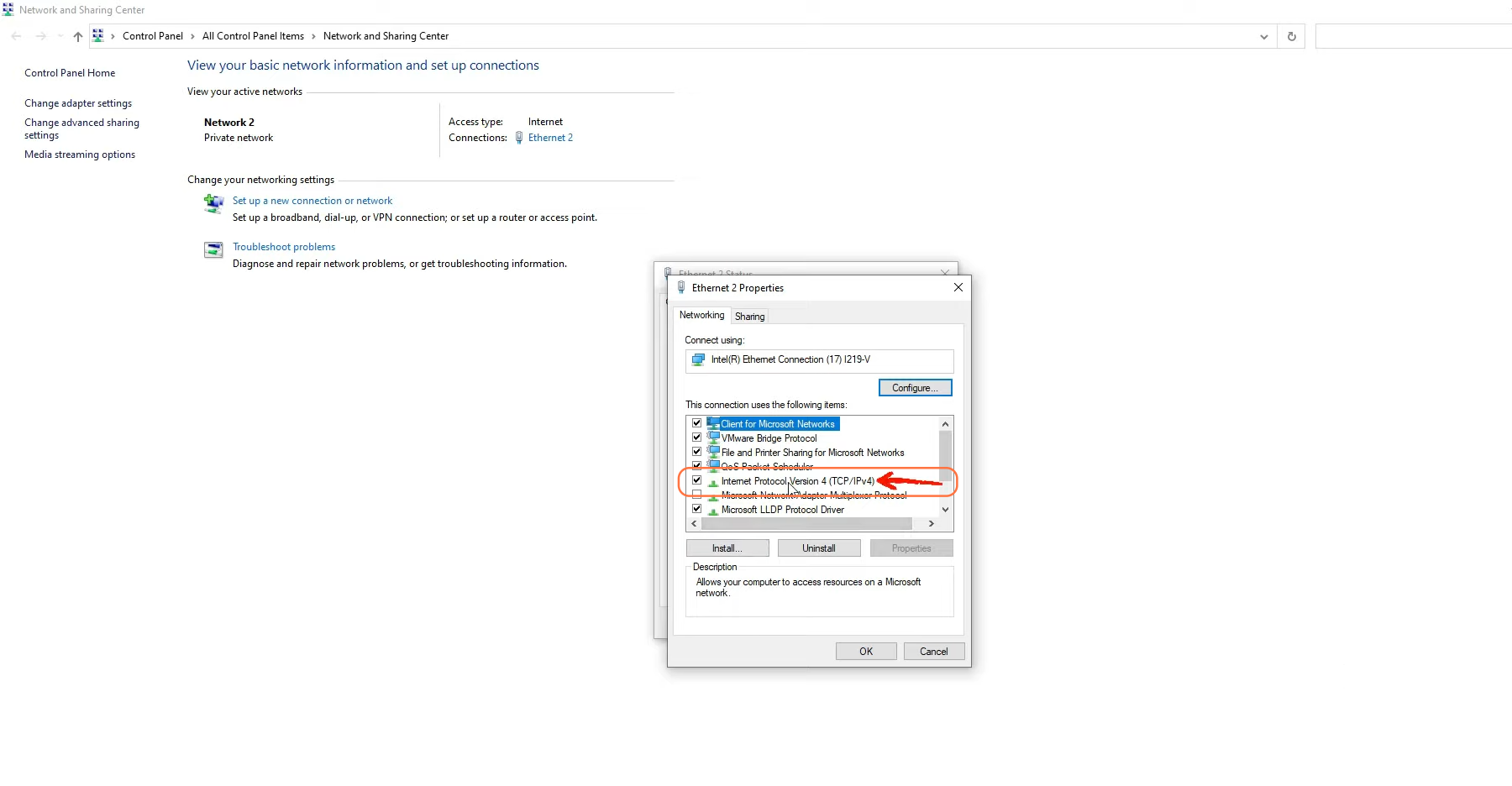
- Click Properties and select Internet Protocol Version 4 (IPv4).
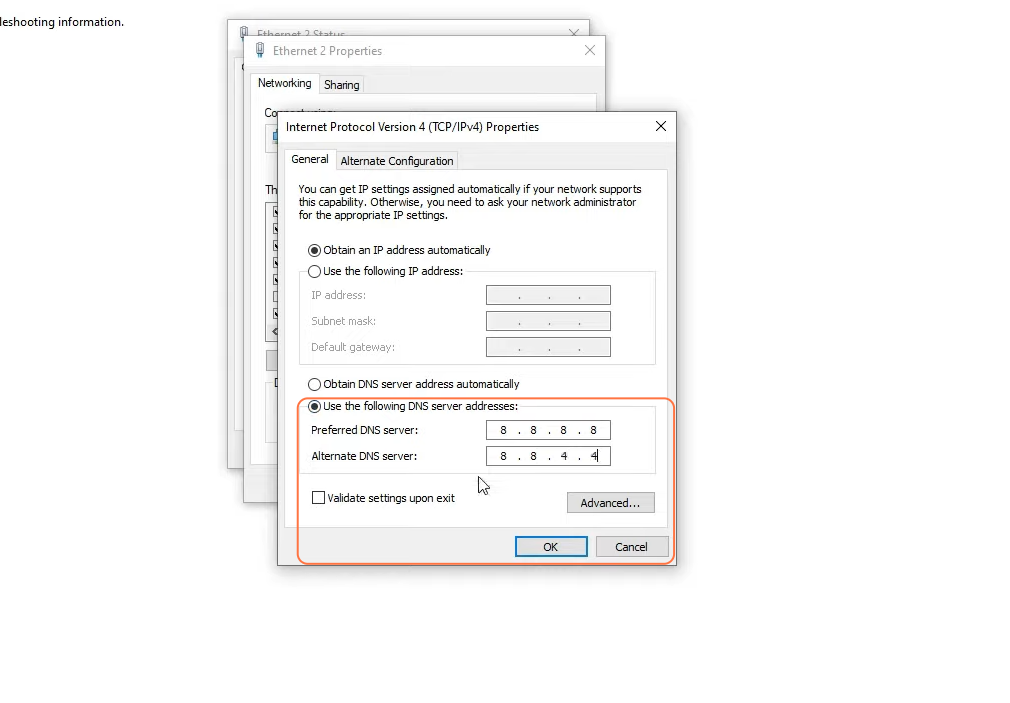
- Select Use the following DNS server addresses.
- Preferred DNS server: 8.8.8.8
- Alternate DNS server: 8.8.4.4
- Enable Validate settings upon exit and click OK.
Step 3: Reinstall Roblox and Try Again
- Go to the official Roblox website and download the Roblox Player.
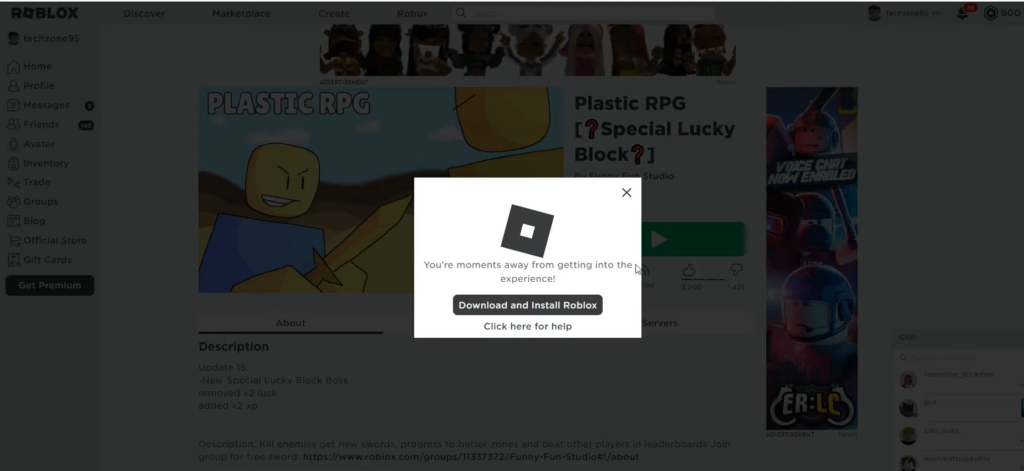
- Install Roblox after the download is complete.
- Launch Roblox and try joining a game server again.
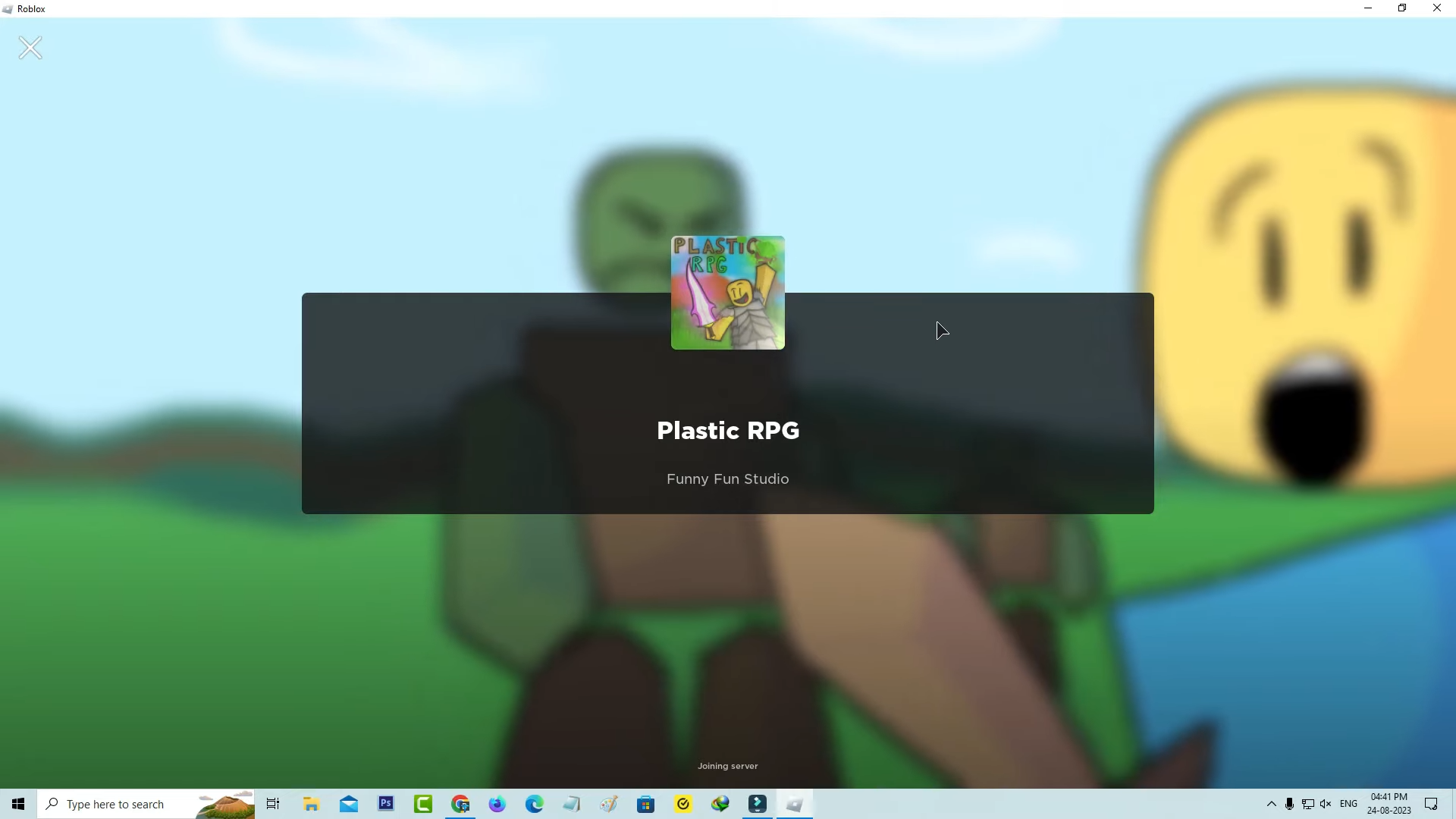
After completing these steps, the Authentication Failed (Error Code: 403) issue should be resolved, allowing you to join Roblox servers normally.