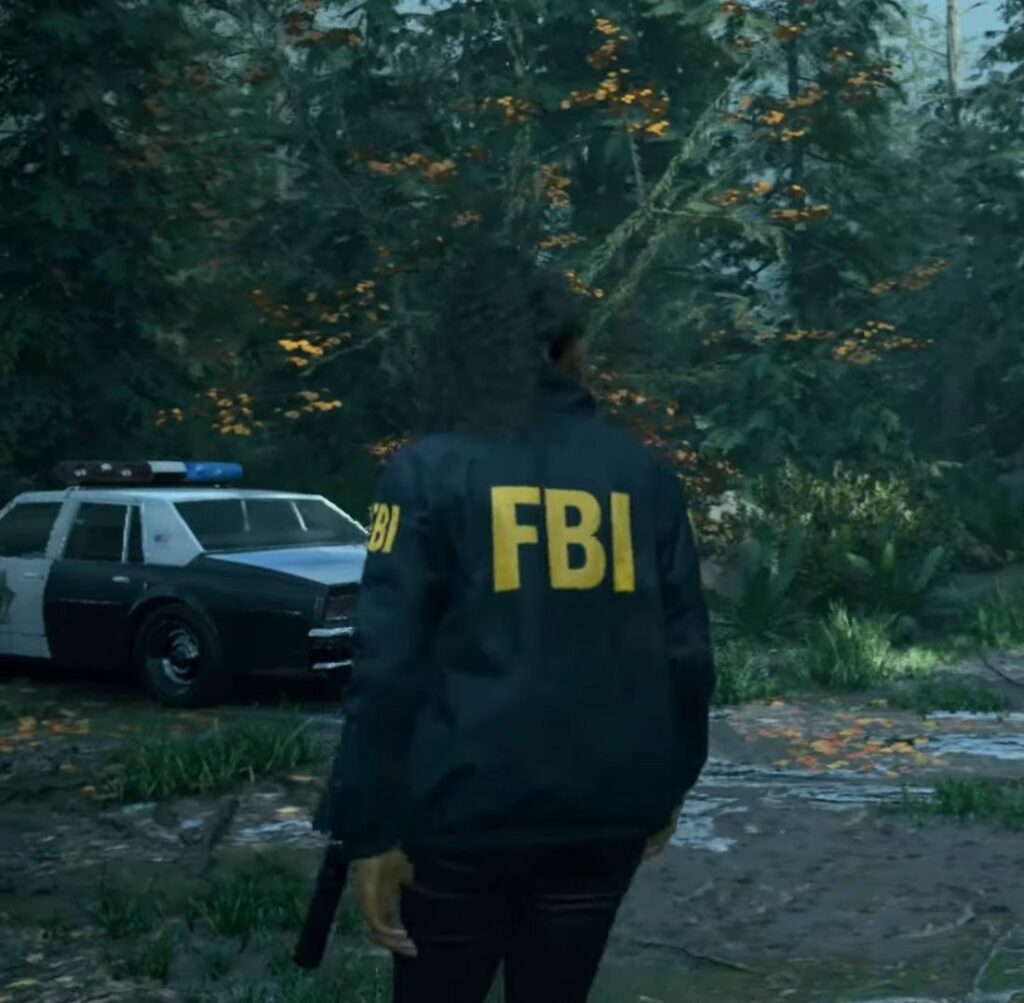
This guide explains how to fix missing textures on Steam Deck SteamOS and complete the setup. First, update SteamOS to version 3.5.1 and make sure Steam Deck SteamOS is installed. After that, download Mesa Git and run the game in Big Picture Mode.
Updating Steam OS to Version 3.5.1
In this section, we’ll walk you through the steps to update SteamOS to version 3.5.1 to fix the issue.
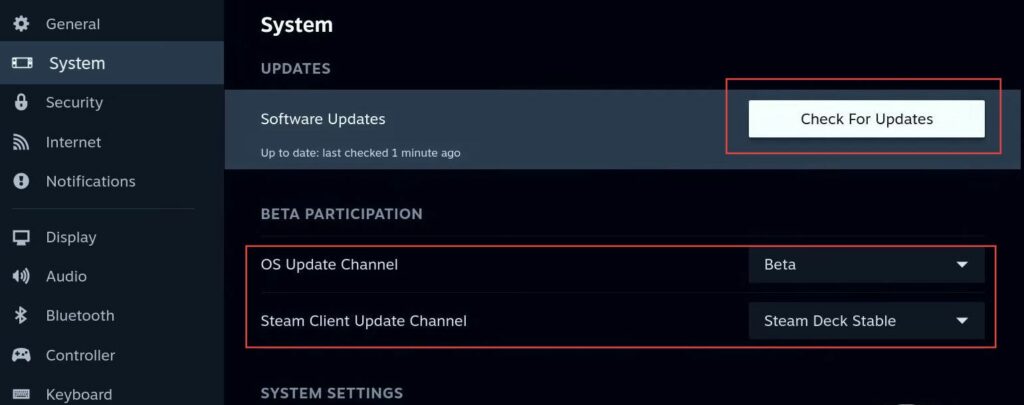
- First, check your current SteamOS version. If you are not already on version 3.5.1, it is recommended to update to this version, as it includes mesh shaders for graphics and removes the need for Mesa Git drivers.
- To update, go to System Settings and make sure Developer Mode is enabled. On the left-hand side, open the Developer tab, scroll down, and enable Show Advanced Update Channels. After that, restart Steam and return to System Settings.
- Open the OS Update Channel and select Beta. For the Steam Client Update Channel, choose Steam Deck Stable, click Check for Updates, and install any available updates.
After updating, your SteamOS version should be 3.5.1.
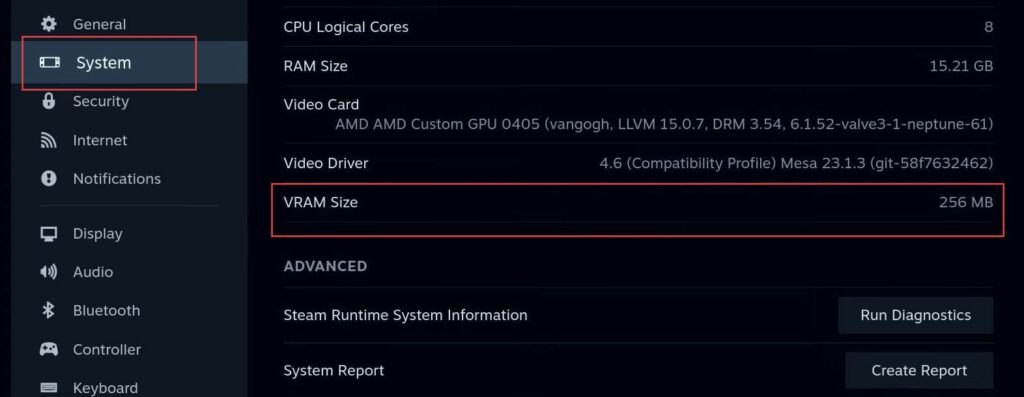
- Enter your BIOS settings and locate the VRAM option. Increase the VRAM allocation to 256 MB.
This is required for a game that checks for 16 GB of RAM; without this change, the game may fail to load. - If your system does not have 16 GB of RAM, you can alternatively download an online patch to replace the executable and change the RAM check from 16 GB to 8 GB. Both methods are valid, so choose the one that best suits your setup.
Fix and Install Steam Deck SteamOS
This section explains how to fix and install Steam Deck SteamOS.
- Switch to Desktop Mode and allow the system to boot. Install the game as a non-Steam game as usual and confirm the target path is set correctly.
Make sure it is added like a standard non-Steam game. - Confirm that no additional launch options are required for Mesa Git or other configurations.
After installation, the game should run without issues.
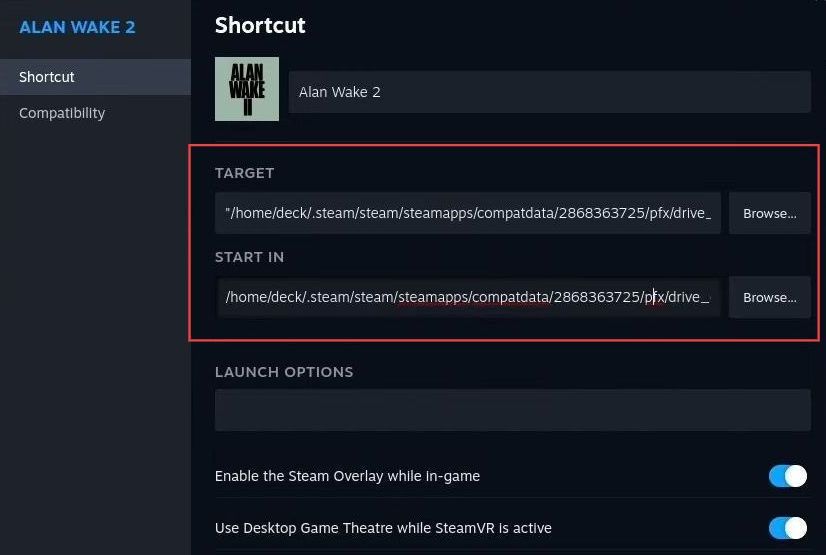
- Open Steam, go to Add a Game, and select Add a Non-Steam Game. Click Browse and locate the Alan Wake executable file in the game folder.
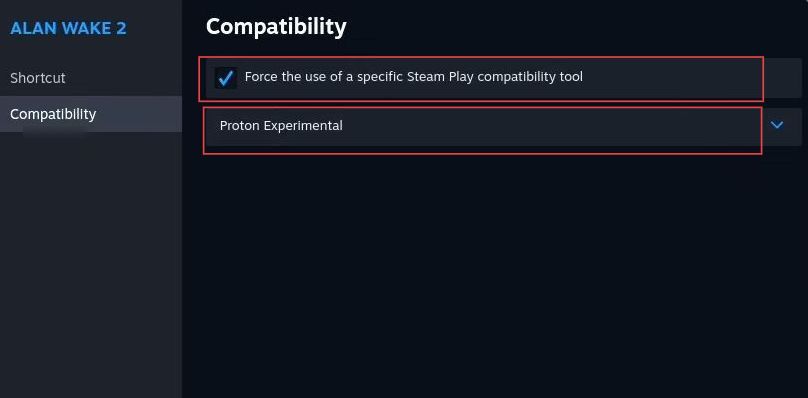
- Add the game to your Steam Library, open the game Properties, and set Compatibility to Proton Experimental.
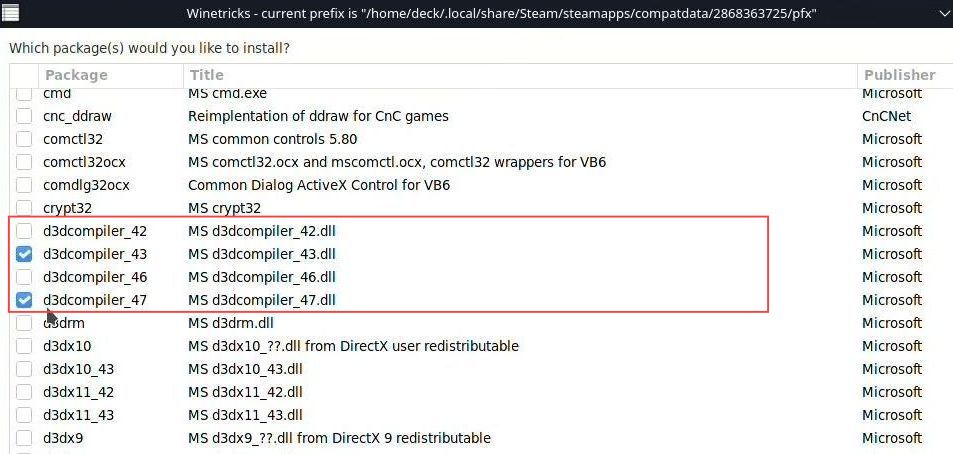
- Launch the non-Steam shortcut for Alan Wake 2 and install the required dependencies.
These include d3dcompiler_43, d3dcompiler_47, and VC Runtime 2022. - In Winetricks, select the default option and install the required Windows components. Wait for the process to finish and confirm all dependencies are installed.
The game should now load correctly.
Download Mesa Git
This section walks you through downloading Mesa Git.
- Download the latest Mesa Git, extract it, and move the extracted folder to your home directory.
- In Steam, open the game Properties and go to Launch Options. Add the following command and save the changes.
VK_ICD_FILENAMES=/home/deck/mesa/share/vulkan/icd.d/radeon_icd.x86_64.json %command%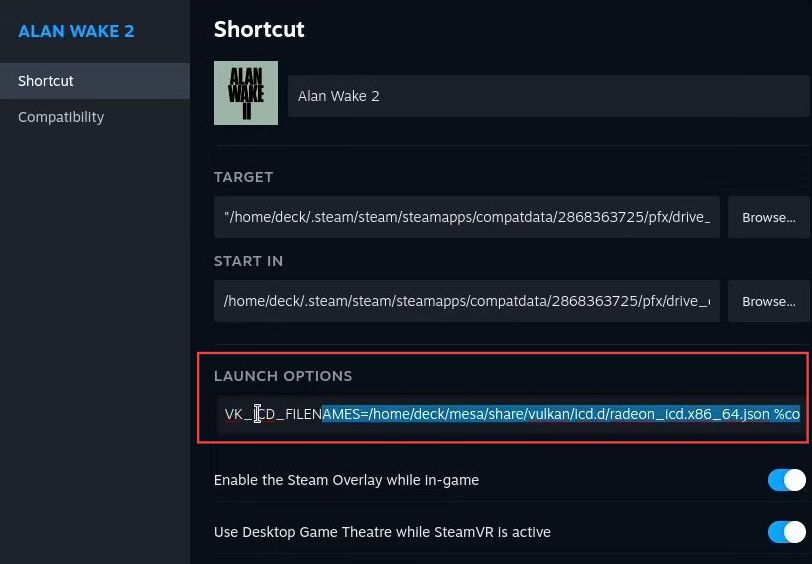
Run the Game in Big Picture Mode
This section explains how to run the game in Big Picture Mode to fix missing textures.
- Open Steam, switch to Big Picture Mode, open the game Properties, confirm the launch command is present, and run the game.
- Check for texture improvements, such as the FBI logo on the jacket and clearer facial features.
- Confirm overall texture improvements, including objects like stones, and ensure the issue is resolved for a better visual experience.
These steps also provide a simpler way to install and play the game.