This guide explains how to fix the “Authentication servers are down for maintenance” Minecraft error. Follow these steps and your problem should be resolved quickly.
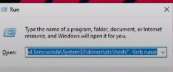
Step 1: Open the Run Menu
Press Windows + R at the same time to open the Run dialog box.
Step 2: Open the hosts file in Notepad
Type the following command in the Run text box:
powershell -command "Start-Process notepad "$env:windir\system32\drivers\etc\hosts" -Verb runas"
Press OK. If prompted by User Account Control, click Yes. This will open your hosts file in Notepad.
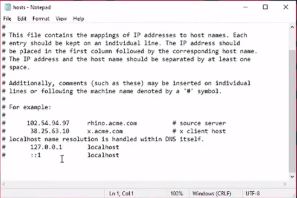
Step 3: Remove Minecraft server blocks
Search through the hosts file and delete any lines related to Minecraft servers or authentication.

Step 4: Save and restart
After deleting the lines, save the Notepad file (Ctrl + S) and close it. Open the Minecraft launcher and log in as usual. The error should now be resolved.